Kilowhat Options
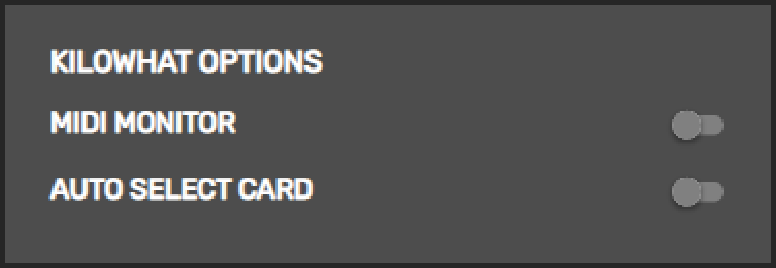
Kilowhat Options control the behavior of the Kilowhat application interface itself, rather than your controller hardware.
MIDI Monitor
Section titled “MIDI Monitor”Toggle the display of MIDI activity in the MIDI Monitor section at the bottom-left of the screen.
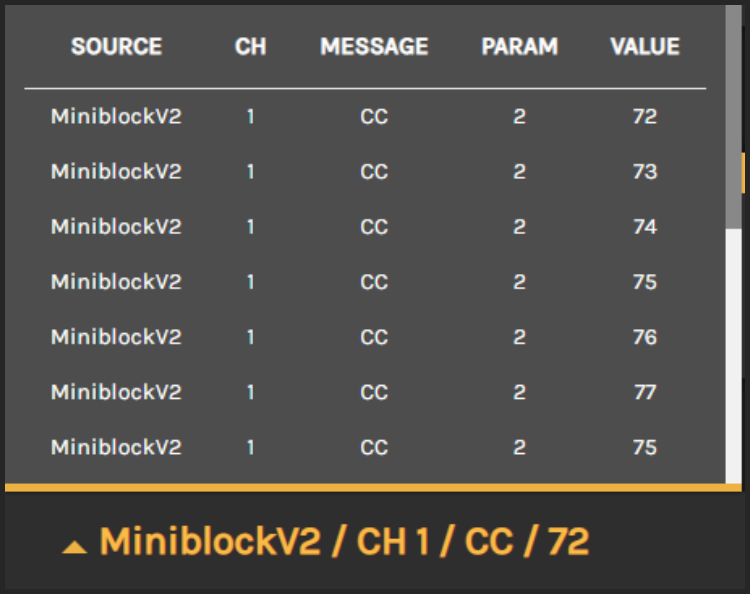
The MIDI Monitor shows:
- Source: The device sending the message
- CH: MIDI channel (1-16)
- Message: Message type (Note, CC, PC, etc.)
- Param: Parameter/note number
- Value: Message value
Normal and Extended Views
Section titled “Normal and Extended Views”The MIDI Monitor has two viewing modes:
- Normal view: Shows a single-line summary of the most recent message
- Extended view: Click on the normal view to expand and see a scrolling list of recent MIDI messages
This is useful for:
- Debugging MIDI routing issues
- Verifying your controller is sending the expected messages
- Monitoring incoming feedback messages from your DAW
Auto-Select Card
Section titled “Auto-Select Card”When enabled, Auto-Select Card automatically highlights and scrolls to the configuration card for any component you interact with on your controller.
How it works:
- Move a knob, press a button, or interact with any component on your controller
- Kilowhat automatically selects and scrolls to that component’s card
- You can immediately edit the component’s configuration
Bank Sync (v0.20+)
Section titled “Bank Sync (v0.20+)”Starting with firmware v0.20, if you change banks on your controller, Kilowhat will automatically select the matching bank in the interface. This keeps the displayed configuration synchronized with the active bank on your hardware.
Related
Section titled “Related”- Devices and Refresh - Connect your controller
- Controller Options - MIDI merge, takeover mode, and more
- Understanding Cards - Learn about the card-based interface