MIDI Monitor
The MIDI Monitor allows you to check MIDI activity directly within Kilowhat. It provides two viewing modes - a normal view and an extended view - both displaying information about the source device, MIDI channel, message type, and value received.
Enabling the MIDI Monitor
Section titled “Enabling the MIDI Monitor”The MIDI Monitor can be toggled on or off via Kilowhat Options in the Preferences panel.
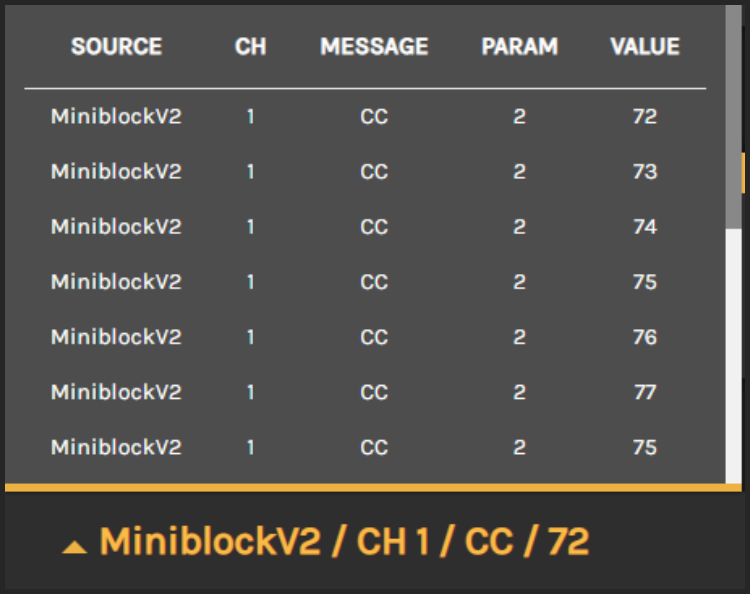
When enabled, the MIDI Monitor appears in the bottom-left corner of the Kilowhat interface.
Normal View
Section titled “Normal View”The normal view provides a compact, single-line summary of the most recent MIDI message received.
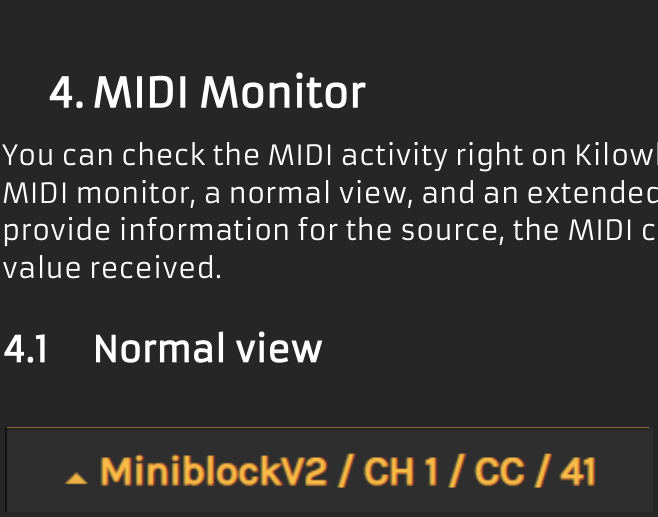
The format displays:
Source / CH [channel] / [Message Type] / [Value]Example:
MiniblockV2 / CH 1 / CC / 41This indicates:
- Source: MiniblockV2 (the controller sending the message)
- CH 1: MIDI channel 1
- CC: Control Change message type
- 41: The value sent
Extended View
Section titled “Extended View”Click on the normal view to expand into the extended view, which displays a detailed table with a history of recent MIDI messages.
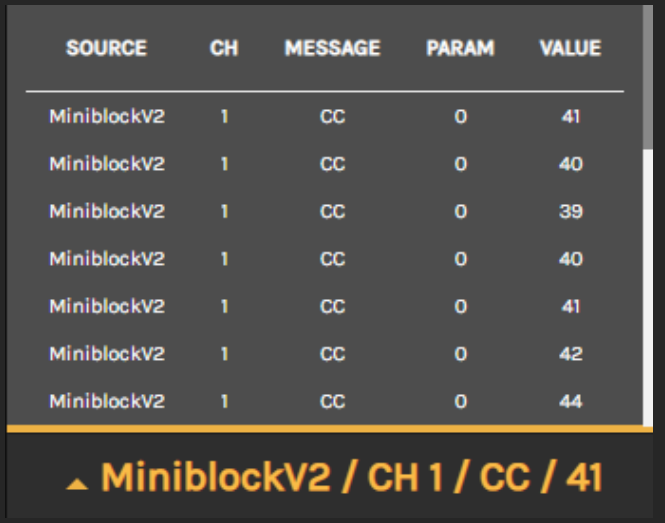
The extended view shows the following columns:
| Column | Description |
|---|---|
| SOURCE | The device sending the MIDI message |
| CH | MIDI channel (1-16) |
| MESSAGE | Message type (CC, Note, PC, etc.) |
| PARAM | Parameter or note number |
| VALUE | The value transmitted (0-127) |
Example entry:
MiniblockV2 | 1 | CC | 0 | 41The extended view maintains a scrolling history, allowing you to review multiple interactions and track patterns in MIDI activity.
Use Cases
Section titled “Use Cases”The MIDI Monitor is valuable for:
Debugging MIDI Routing
Section titled “Debugging MIDI Routing”- Verify that your controller is sending messages correctly
- Confirm messages are reaching Kilowhat
- Identify unexpected message types or values
Testing Configurations
Section titled “Testing Configurations”- Check that component changes produce the expected MIDI output
- Verify channel assignments are correct
- Confirm parameter numbers match your DAW expectations
Monitoring Feedback
Section titled “Monitoring Feedback”- Watch incoming feedback messages from your DAW
- Verify bi-directional communication is working
- Debug LED or display feedback issues
Learning Your Controller
Section titled “Learning Your Controller”- Discover which component sends which MIDI message
- Map physical controls to their MIDI assignments
- Understand how different interaction types (press, turn, release) generate messages
Related Pages
Section titled “Related Pages”- Kilowhat Options - Toggle MIDI Monitor and other application settings
- UI Elements - Overview of the Kilowhat interface
- Understanding Cards - Learn about component configuration