Filters and Search
When working with controllers that have many components, finding the right card to configure can be challenging. Kilowhat provides powerful filtering and search tools to help you work more efficiently.
Filters and Search Overview
Section titled “Filters and Search Overview”The filters allow you to manage the cards and work more comfortably. Select one of the filter tags from the pop-up menu and use the search tool to refine your search and quickly find the parameter you want to change.
E/D/A/F Buttons
Section titled “E/D/A/F Buttons”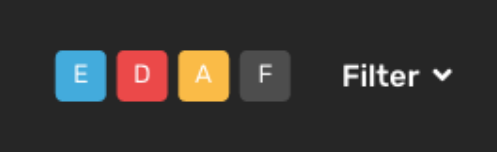
You can show and hide groups of cards easily with these dedicated buttons:
| Button | Component Type | Description |
|---|---|---|
| E | Encoders | Rotary encoders with LED rings |
| D | Digital | Buttons, switches, and other digital inputs |
| A | Analog | Potentiometers, faders, joysticks, and other analog inputs |
| F | Feedback | Standalone feedback modules (LEDs without input) |
Turning these switches on and off will show/hide the corresponding section of cards. This is purely for visualization purposes - no actual change will be performed on your controller configuration.
Collapsing Sections
Section titled “Collapsing Sections”You can also collapse each component list using the arrows next to the section name. This provides another way to organize your view when working with many components.
Search Functionality
Section titled “Search Functionality”The search tool lets you find specific cards by typing in the search box. You can search by:
- Comment name - The custom label you’ve given to a component
- Parameter number - The CC number or note value
- Message type - Search for “CC”, “NOTE”, etc.
Using Filters with Search
Section titled “Using Filters with Search”Combine the E/D/A/F buttons with the search tool for powerful filtering:
- First, narrow down by component type using E/D/A/F
- Then use the search box to find specific parameters
This two-step approach helps you quickly locate exactly what you need.
Show/Hide Banks
Section titled “Show/Hide Banks”
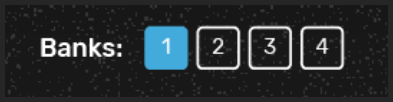
The bank selector shows numbered buttons representing each bank in your configuration. Click a bank number to show that bank’s component settings.
Key points about bank display:
- Only one bank can be shown at any given time
- Click a bank number to switch to viewing that bank’s configuration
- The currently selected bank is highlighted
- Each bank can have completely different settings for the same physical components
Best Practices
Section titled “Best Practices”Organizing Your Workflow
Section titled “Organizing Your Workflow”- Start with component type - Use E/D/A/F to show only the type you’re working on
- Use comments - Add descriptive comments to your components so search works better
- Work bank by bank - Configure one bank completely before moving to the next
- Collapse unused sections - Keep your workspace clean by collapsing sections you’re not editing
Quick Navigation Tips
Section titled “Quick Navigation Tips”- Auto-Select Card: Enable this in Preferences to automatically jump to a card when you move a component
- Keyboard shortcuts: Use the search box to quickly jump to components by name
- Section collapse: Collapse sections you’re done with to focus on remaining work
Related Pages
Section titled “Related Pages”- Understanding Cards - Learn what each card element means
- UI Elements - Understand status indicators and preferences
- Banks Overview - Learn about bank configuration